Sample Scripts and Functions
Pop up boxes can be super useful to collect input from the user or get their final confirmation. The buttons clicked by the user can then be used in your code to execute different parts of your code (e.g. the user clicks "Yes" and then the script continues and otherwise the script stops. Documentation can be found here.
By assigning the boxes to a variable, they will still be executed (box pops up) but the user input such as button presses or text they write is assigned to the response variable and can thus be used in follow on formulas with an if statement for example.
These boxes are just boxes with certain buttons that the user can click. They also have a title and message.
function test () {
    var ui = SpreadsheetApp.getUi();

    var response1 = ui.alert(title, content,ui.ButtonSet.YES_NO_CANCEL)
    var response2 = ui.alert(title, content,ui.ButtonSet.YES_NO)
    var response3 = ui.alert(title, content,ui.ButtonSet.OK)
    var response4 = ui.alert(title, content,ui.ButtonSet.OK_CANCEL)
};
//Example
function test() {
var ui = SpreadsheetApp.getUi();
var response = ui.alert("Final Check", "Are you sure that you want to run the script?", ui.ButtonSet.YES_NO)
};
// Would make a box (see screenshot below). 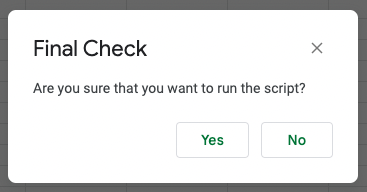
Message boxes are similar to alert boxes with the small change that they expect the user to input something such as a name.
function test () {
    var ui = SpreadsheetApp.getUi();

    var response1 = ui.prompt(title, content,ui.ButtonSet.YES_NO)
    var response2 = ui.prompt(title, content,ui.ButtonSet.YES_NO_CANCEL)
    var response3 = ui.prompt(title, content,ui.ButtonSet.OK)
    var response4 = ui.prompt(title, content,ui.ButtonSet.OK_CANCEL)
};
//Example
function test () {
var ui = SpreadsheetApp.getUi();
var message = ui.prompt("Name", "What is your name?", ui.ButtonSet.YES_NO)
var response = message.getResponseText();
};
// Would make a box (see screenshot below). 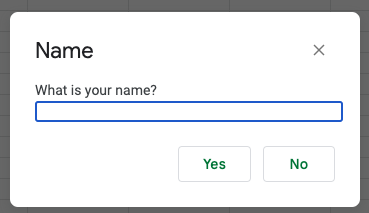
If you are using this often, you can create your own little function that takes title, content, and type as input.
function message(title, content, type) {
  var ui = SpreadsheetApp.getUi();
  if (type = "Yes/No") {
    ui.alert(title, content,ui.ButtonSet.YES_NO)
  }
  else if (type = "Ok") {
    ui.alert(title, content,ui.ButtonSet.Ok)
  }
  else if (type = "Ok/Cancel") {
    ui.alert(title, content,ui.ButtonSet.OK_CANCEL)
  }
  else if (type = "Yes/No/Cancel") {
    ui.alert(title, content,ui.ButtonSet.YES_NO_CANCEL)
  }
};This function finds the last non-empty row in a given range. If there are blank rows in the middle, it assumes that these are still part of the range. The output is the number of rows in the range and not necessarily the row number of the sheet! This can be very useful if you need to add information at the end of a range and need to ensure that you are not overwriting information.
It takes the sheet_name and the range you're looking through as inputs.
function getLastRowSpecial(sheet_name, reference){
  var ss = SpreadsheetApp.getActive();
  var sheet = ss.getSheetByName(sheet_name);
  var range = sheet.getRange(reference).getValues();
  var rowNum = 0;
  var blank = false;
  for(var row = 0; row < range.length; row++){
      if(range[row][0] === "" && !blank){
      rowNum = row;
      blank = true;
      }
      else if(range[row][0] !== ""){
      blank = false;
      };
  };
  return rowNum;
};
// Example
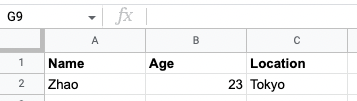
// This uses the function above to paste the contents of `data` into `Sheet1` underneath the last row. Make sure that you have both functions in the same Google Apps Script or this won't work.
function test() {
var ss = SpreadsheetApp.getActive();
var sheet = ss.getSheetByName("Sheet1");
var data = [["Zhao",23,"Tokyo"]]
var row = getLastRowSpecial("Sheet1","A:A");
sheet.getRange(row + 1, 1, 1, 3).setValues(data);
};
It can be difficult to deal with dates and times with coding in general and this little function might help you adding/subtracting from a datetime (just a date with a time as well).
It takes a data Object (you can create a new one with new Date()), units (what units you want to be working with), and the number of units.
// Example
function dateFromDate(date,units,number){
  switch (units) {
    case "week":
      var result = new Date(date.getTime()+number*(7*24*3600*1000));
      break;
    case "day":
      var result = new Date(date.getTime()+number*(24*3600*1000));
      break;
    case "hour":
      var result = new Date(date.getTime()+number*(3600*1000));
      break;
    case "minute":
      var result = new Date(date.getTime()+number*(60*1000));
      break;
    case "second":
      var result = new Date(date.getTime()+number*(1000));
      break;
  };
  return result
};

// Example - add one week to today's date
dateFromDate(new Date(),"week",1) When you have an array or arrays (2+ dimensional arrays), you sometimes want to flatten this out to a single dimension.
function flatten(arrayOfArrays){
  return [].concat.apply([], arrayOfArrays);
};

// Example 1 - only one level of nesting
arrayOfArrays = [ [1], [2,3], [4], [5,6] ]
flatten(arrayOfArrays) // returns: [1, 2, 3, 4, 5, 6]

// Example 2 - more than one level of nesting
arrayOfArraysWithTwoLevelNesting = [ [1], [[2],3], [4], [[5],6] ]
flatten(flatten(arrayOfArraysWithTwoLevelNesting )) // returns: [1, 2, 3, 4, 5, 6]
NikRpk