

🕹️ Gameboy.Live is a Gameboy emulator written in go for learning purposes. You can simply play Gameboy and Gameboy Color games on your desktop:

Or, "Cloud Game" in your terminal with a single command (The demo server is down now, you have to deploy on you own server):
telnet gameboy.live 1989

Even play with other visitors together on EduLoboM:
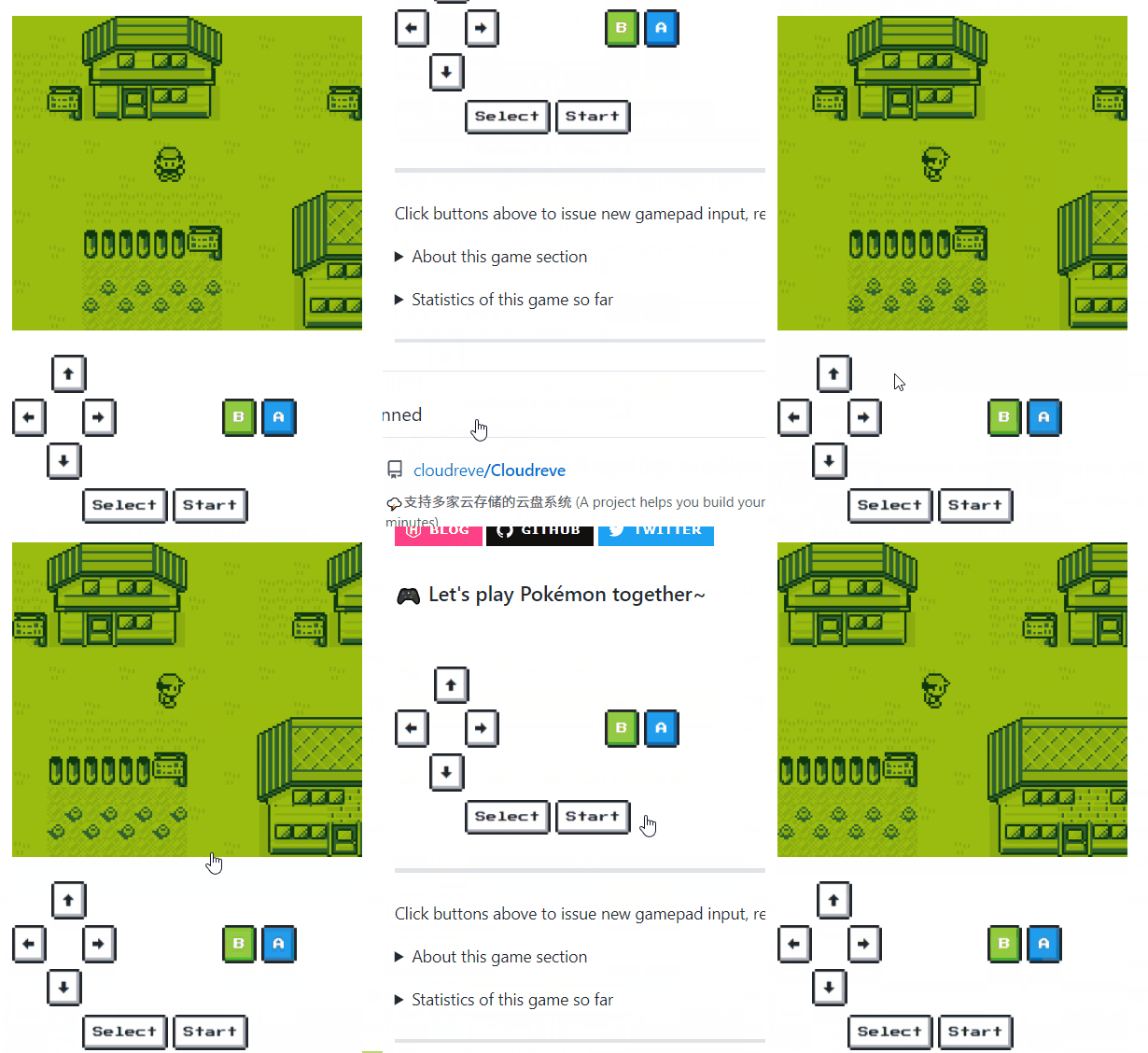
You can directly download the executable file from the Release page, or build it from the source. Go Version 1.11 or higher is required. Run go version to check what the version currently installed is. On Debian based systems, the packages libasound2-dev and libgl1-mesa-dev must be installed.
git clone https://github.com/HFO4/gameboy.live.git
cd gameboy.live
go build -o gbdotlive main.go
Usage of gbdotlive:
  -G    Play specific game in Fyne GUI mode
  -S    Start a static image cloud-gaming server
  -c config
        Set the game option list config file path
  -d    Use Debugger in GUI mode
  -f FPS
        Set the FPS in GUI mode (default 60)
  -g    Play specific game in GUI mode (default true)
  -h    This help
  -m    Turn on sound in GUI mode (default true)
  -p port
        Set the port for the cloud-gaming server (default 1989)
  -r ROM
        Set ROM file path to be played in GUI mode
  -s    Start a cloud-gaming server
Play a specified ROM file in GUI mode:
gbdotlive -G -r "Tetris.gb"
You can use Gameboy.Live as a "Cloud Gaming" server, where players use telnet to play Gameboy games in terminal without additional software installation required. (Except telnet itself xD)
A gamelist.json config file is required to specify game options. This is a typical example:
[{
 "Title": "Tetris",
 "Path": "test.gb"
}, {
 "Title": "Dr. Mario",
 "Path": "Dr. Mario (JU) (V1.1).gb"
}, {
 "Title": "Legend of Zelda - Link's Awakening",
 "Path": "Legend of Zelda, The - Link's Awakening (U) (V1.2) [!].gb"
}]
It is recommended to test every ROM before putting them in the config file.
Next, start a Gameboy.Live server with the config file from the previous step:
gbdotlive -s -c "gamelist.json"
You will see an output like this, which means your server has started successfully:
2019/04/30 21:27:56 Listen port: 1989
Now, you can play games anywhere you want! The simulation and rendering process is done entirely on the server.
telnet <ip of your server>:<port>
"Cloud Gaming" is only supported in terminals which support standard ANSI and the UTF-8 charset. You can use WSL instead of CMD on Windows.
You can also set up a static cloud gaming server, where one specific game is emulated, everone can play it cooperatively by clicking hyperlinks. Start such a server with folowing command:
gbdotlive -S -r "Pokemon - Red Version (USA, Europe) (SGB Enhanced).gb"
A HTTP server will start up on default port 1989, these HTTP routes is avaliable to use:
| Routes | Method | Description |
|---|---|---|
/image |
GET | Show the latest game screenshot. |
/svg?callback=[Redirect URL] |
GET | Show the latest game screenshot with Gameboy style border and clickable gamepad. An SVG template gb.svg is required. |
/control?button=[Button ID]&callback=[Redirect URL] |
GET | Send new gamepad input. |
/save/download |
GET | Download the current .sav file directly in browser. |
/save/upload |
POST | Upload/restore a .sav file. |
/health |
GET | Health check endpoint (returns 200 OK). |
To avoid losing your save progress when hosting in ephemeral cloud environments (like Koyeb):
-
Option A: GitHub Gist Auto-Sync (Recommended)
- Create a Secret Gist on GitHub (with an initial empty file, e.g.
game.gbc.sav). - Create a GitHub Personal Access Token (classic) with
gistscope. - Set the following Environment Variables on Koyeb / Docker:
GITHUB_TOKEN: Your GitHub token.GIST_ID: Your Gist ID from the URL (e.g.d3b07384d113edec49eaa6238ad5ff00).GIST_FILENAME(optional): Name of the save file (defaults togame.gbc.sav).
- The server will automatically download the latest save on boot and upload changes asynchronously whenever the game saves!
- Create a Secret Gist on GitHub (with an initial empty file, e.g.
-
Option B: Persistent Volume
- Mount a Koyeb Persistent Volume (e.g. at
/data). - Set Environment Variable:
SAVE_DIR=/data
- The
.savfile will be stored directly in the persistent disk.
- Mount a Koyeb Persistent Volume (e.g. at
Thanks to szymonWojdat, you can use websockets interface for sending static images so that you don't need to reload the website after each button press.
Make sure the static server above is already started up on default port 1989.
- Use
ws://localhost:1989/streamroute in order to start a websocket communication channel. - Images will be streamed to the client in PNG encoding.
- The client can send their input commands in text format using one of these codes:
- Right Arrow:
0 - Left Arrow:
1 - Up Arrow:
2 - Down Arrow:
3 - A:
4 - B:
5 - Select:
6 - Start:
7
- Right Arrow:
- check out
client_demo.htmlfor a simple demo and don't forget to run the server before by using the command above 🌝
Gameboy.Live has a simple built-in debugger. To turn on debug mode, set the d flag to true:
gbdotlive -r "test.gb" -d=true
The emulator will firstly break at the ROM entry point 0x0100 in debug mode, which is the entry point of the game program. You can type the address of next breakpoint. The emulator will continue to run until the next breakpoint is reached. At each breakpoint, the emulator will print the register's contents like above and dump the main memory into memory.dump (ROM and RAM bank not included)
[OP:NOP]
AF:01B0  BC:0013  DE:00D8  HL:014D  SP:FFFE
PC:0100  LCDC:91  IF:E1    IE:00    IME:false
LCD:100
| Keyboard | Gameboy |
|---|---|
| Enter | Start |
| Backspace | Select |
| ↑ | Up |
| ↓ | Down |
| ← | Left |
| → | Right |
| X | A |
| Z | B |
- CPU instruction emulation
- Timer and interrupt
- Support for ROM-only, MBC1, MBC2, MBC3, MBC5 cartridge
- Support Gameboy Color (GBC) emulation
- Sound emulation
- Graphics emulation
- Cloud gaming (Telnet & HTTP / SVG)
- Cloud save persistence & auto-sync (GitHub Gist & Volumes)
- ROM debugger
- Game saving & restore in cartridge level
There are still some TODOs:
- Support for MBC4, HuC1 cartridge
- Sound simulation improvements (refine nuances compared to real hardware)
- Sprite priority adjustments for edge-case titles
- Instruction timing test suite completion (Blargg)
- Multiplayer support in cloud gaming mode

This emulator is just for learning and entertainment purposes. There are still many places to be perfected. Any suggestions or contributions is welcomed!
Thanks:
- HFO4 Creator of the original gameboy.live project.
- szymonWojdat Adding a WebSockets implementation.
- andydotxyz Adding Fyne GUI driver and saving support for cartridges, also fixing some bugs.
- maxolasersquad and tilkinsc Polishing README and documents.