





Easytrieve Language Support empowers developers with modern, shift-left capabilities that eliminate repetitive, manual tasks and fuel productivity. The modern day developer, relatively new to the mainframe can now work with mainframe applications with familiar, open-source tooling.
The extension leverages the language server protocol to provide features such as autocomplete, syntax coloring, hover, and Go to definition, as well as diagnostic features for Easytrieve code and its macros. The Easytrieve Language Support extension enables you to connect to the mainframe using a Zowe zosmf profile to submit jobs, and retrieve macros used in an Easytrieve program and store them locally on your PC.
The extension also has the capability to generate JCL files to wrap around your Easytrieve program to execute your program on the Mainframe.
Easytrieve Language Support recognizes files with the extension .ezt as Easytrieve files, .mac as Easytrieve macros and .def as option table definitions.
For a high level overview of the Easytrieve Visual Studio Code Extension as well as instructional videos about how to use many functionalities of the extension, see Broadcom’s Educate YouTube channel.

Easytrieve Language Support is part of the Code4z experience from Broadcom, which offers a modern experience for mainframe application developers. To get started with Code4z, check out our foundational extension pack.
Address Software Requirements
There are no client or server-side software requirements for Easytrieve Language Support.
After installing the extension through the Visual Studio Code Marketplace, basic extension functionality is available.
Integrating
Integrate the Easytrieve Language Support extension with other solutions to extend the capabilities of the product and to expand the range of use cases.
Integrate with Zowe Explorer
Integrate Easytrieve Language Support with Zowe Explorer and set up a profile that enables communication between VS Code and the mainframe. This profile is used for the following executions on the mainframe:
-
Upload of generated JCL files to datasets
-
Easytrieve program upload
-
Macro upload/download
To use the default profile, leave this field empty.
For more information, see Zowe Explorer Profiles.
For more information on creating a zosmf profile, see Creating a zosmf profile.
Integrate with SSH client for VS Code
Integrate Easytrieve Language Support with an SSH client for VS Code (or any VS Code extension that enables communication with a Linux server) in order to compile and run an Easytrieve program on a remote Linux system.
Integrate with Windows
Integrate Easytrieve Language Support with Easytrieve for Windows to execute the Easytrieve code locally. When using the Easytrieve for Windows version, the code created using VS Code can be executed directly from VS Code on a local PC and the output can be viewed using VS Code. For more information, see Install Easytrieve for Windows.
Note: Configuring Easytrieve Report Generator for Windows is required for the local-build and run task.
Integrate with DB2
Integrate Easytrieve Language Support with DB2 to handle large amounts of data that are compatible with various operating systems and programming languages. The DB2 databases can be integrated with other software and tools.
Language Server Features
The following features are available through the Easytrieve Language Support Extension:
Source Code Validation
Code in .ezt files is validated by the modified Easytrieve compiler. As such, error and warning messages are the same as when the source code is compiled under the same conditions. To apply custom compiler options, use a custom options table, or configure a connection to the database used by your Easytrieve compiler.
Syntax Coloring
An Easytrieve program developed using this extension is syntax colored. The coloring schema uses VS Code standards.
Hover
The Hover functionality provides additional information about symbols (fields and filenames). Use the hover function by placing the cursor over the field name or file name. Information might be limited if the symbol is defined in a macro.
Go to Definition
The Go to definition feature makes it possible to jump to the specific location where a symbol (field or filename) is defined. This function is limited to the currently edited file. This feature is not available for symbols defined in a macro.
Autocompletion (context-specific)
Autocompletion can be used only when a colon : is used after a filename. Enter ctrl + space to see a list of all fields defined for the file.
Language Server Settings
The extension UI provides several fields in which you can specify your configuration settings. For more information about how to configure settings, see Visual Studio Code User and Workspace Settings.
Currently, the Easytrieve Language Support Extension is only available on Windows 10 or later, and only supports ODBC and DB2 databases. The extended printer definition is not supported on the current version of the Easytrieve Language Support extension.
The following Language Server Settings can be customized using the extension:
Options Table
Specify where to store options as an input for the compiler. If the value is a relative path, this value is evaluated against the first root of the workspace. Update this field when other values other than default values are applied in the options table for validating and parsing the code by the extension.
The default is empty. This results in a W703 warning (missing options table).
In the Options Table field, enter the path to the file containing the options table definitions in text format. Use the .def extension.
Important: A .def file that uses CRLF at the end of the line of characters might prevent the Language Server from running properly. To prevent this problem from occurring, ensure that the end of the line sequence in *.def is set to Unix style (LF).
Notes:
- Use the same format that you use as input for
etopload. For more information, see Updating the Table. - Ensure to include an empty line at the end.
Macros
In the Macros field, provide a list of directories (absolute paths) or DSNs with macros separated by semicolons. An absolute path is treated as a local directory. Other values other than absolute paths are treated as dataset names.
The default value is empty.
Click refresh macros in the status bar to download macros from datasets.
Alternatively, you can execute the following command in the command palette:
Easytrieve Language Support - refresh macros
For more information, see the Macro Search Directory Parameter in the Easytrieve documentation.
Configure Your Database Connection
Configuring eztsql configures your database connection type. To setup the database itself, follow the documentation specific to your database. This specification ensures that the database connection is used to validate and parse the Easytrieve code. This value controls the type of database connection (EZTSQL).
Possible values for this field are the following databases:
- ODBC
- DB2 The default database connection is ODBC.
Note: After changing this value, be sure to restart the language server by restarting VS Code.
Db Name Override
Use ODBC Datasource name or Database name for SSID PARM Override to override the database name (e.g. SSID) specified in the source code. This override is useful when the local database used by the language server name differs from the one used on the target system (used during execution).
The default of this setting is empty.
Note: After changing this value, the language server requires a restart of VS Code.
Configure Your JCL Settings
The JCL generate functionality makes it possible to create JCL files required to execute the Easytrieve program on the mainframe. These JCL files are built using the JCL settings present in the Easytrieve Language Support Extension settings.
The following options apply to the JCL generate functionality. To generate a JCL for the Easytrieve code, specify the following:
-
jobcard
A freeflow Jobcard field for the Easytrieve execution JCL.
//JOB01EZT JOB (123456789),'EZTPRGMR'is the default setting.This jobcard is inserted at the beginning of the generated JCL.
-
cbaaload
Specifies the Step libraries for Options table creation and Easytrieve execution. Multiple libraries must be delimited by semicolons. The specified libraries are used in the options table creation step as well as the Easytrieve compile and go step of the generated JCL.
-
ezoptbl
Specifies the existing options table dataset residing on the mainframe. This is an options table for the generated JCL for Easytrieve execution. Specify a valid pre-created/compiled options table.
-
When
ezoptblis present, theJCL generatefeature generates only a compile and go step of the Easytrieve program. -
When
ezoptblis not present, theJCL generatefeature also adds an options file creation step to the generated JCL.
The options for the options table are recovered from the Windows options file if
ezoptblis present. If the Windows options file is not specified, the Easytrieve default options are used. -
-
jobparm
Specifies the Jobparm for the Easytrieve execution JCL.
Example:
/*JOBPARM SYSAF=*The default is set to empty.
-
eztdsn
Specifies the target data set to upload Easytrieve programs to on the mainframe. This data set is also referred to in generated JCL. When
eztdsnis not specified, the Easytrieve program is placed in-line with the generated JCL.The default is set to empty.
-
jcldsn
Specifies an existing dataset where to upload the generated JCL. Specify
JCLDSNfor the generated JCL (generated*.JCLfiles) to be uploaded to the mainframe from VS Code.The default is set to empty.
Execute Your Easytrieve Program on the Mainframe
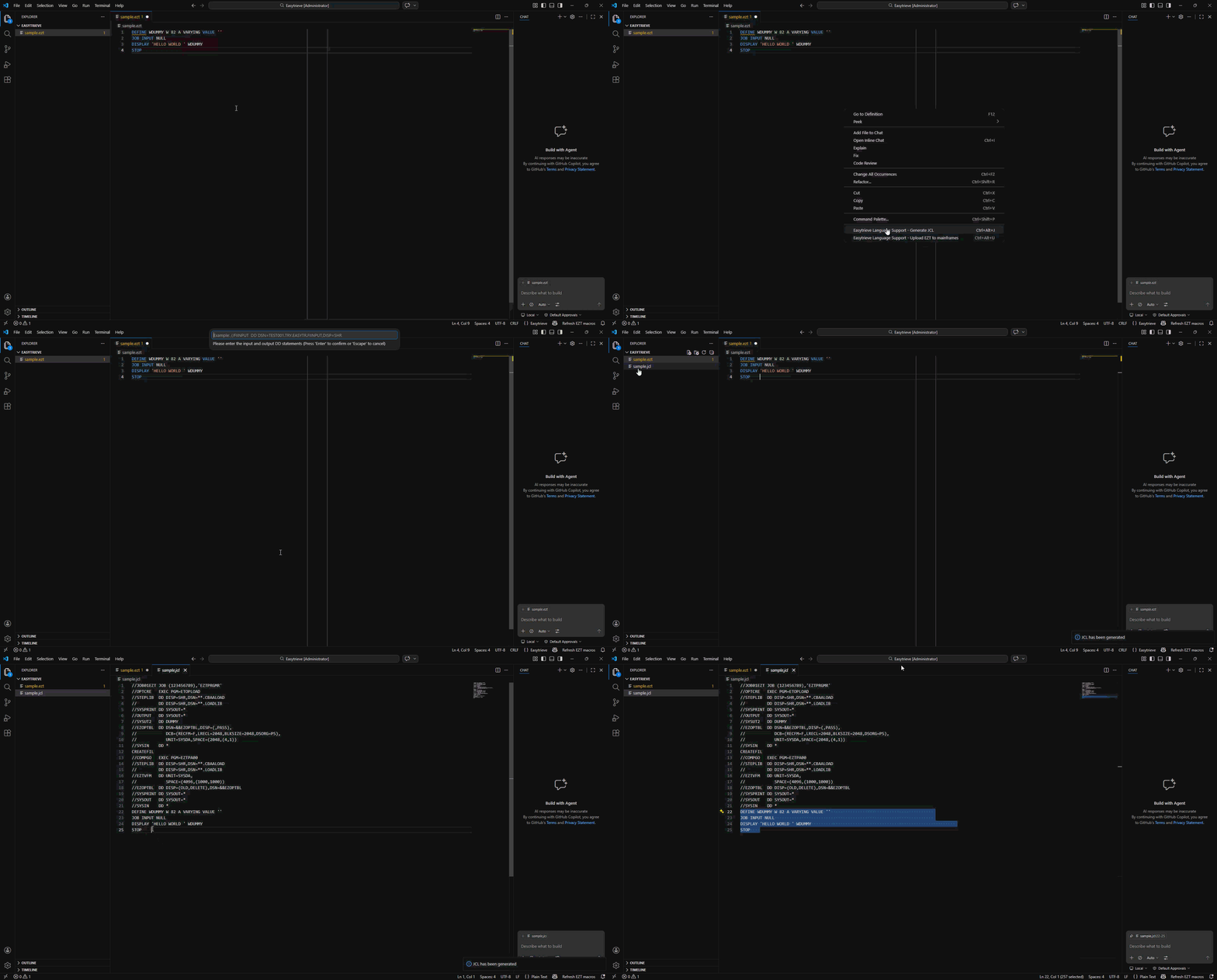
To execute an Easytrieve program on the mainframe, generate a JCL file using the JCL generate feature. Supporting DD statements like Input Output (IO) files and JCL comments which are specified in JCL format can be added to the generated JCL in one of three ways:
-
Specify IO files, JCL comments and/or DD statements in the
<Easytrieve_program_name>.dsnfile within the workspaceExample:
For the Easytrieve program
employee.ezt, the input file salary is specified in JCL format in theemployee.dsnfile.//THIS IS JUST A COMMENT //SALARY DD DSN=SITEID.DATE.SALARY,DISP=SHR -
Specify the IO files, JCL comments and other DD statements in the user prompt which is displayed after the Easytrieve Language Support - Generate JCL contextual option. To use this option, right-click on the
*.eztfile display. (This option overrides the first option.)
Note: Leave the User Prompt empty and press Enter to continue generating the JCL with the IO files specified on the <Easytrieve_program_name>.dsn file.
- Specify common DD statements and JCL comments to the
default.dsnfile. These statements and comments are applied to every JCL file generated within the workspace.
Upload Easytrieve Programs on the Mainframe
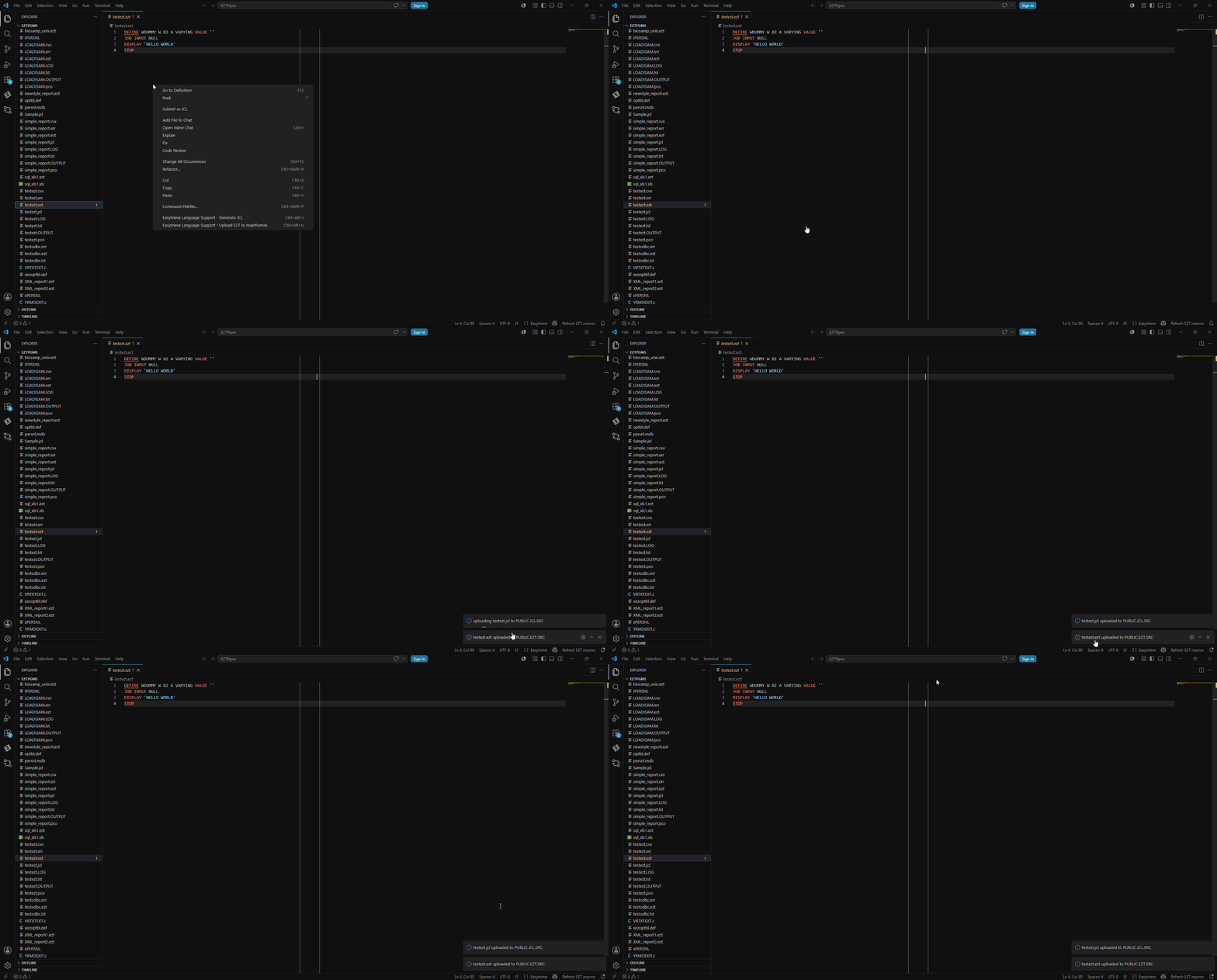
After generating the JCL, if the Eztdsn setting is specified with a valid dataset name, the dataset name is referenced for the Easytrieve source in the generated JCL.
To have a valid reference to the dataset and program member, it is necessary to upload the Easytrieve program to the specified dataset in the mainframe.
- Select the contextual option Easytrieve Language Support - Upload EZT to mainframes.
If a dataset name is specified in the Jcldsn setting, the generated JCL file is uploaded to the mainframe.
Note: Ensure that a Zowe profile is configured to upload the EZT and the JCL files to the mainframe.
Customize Easytrieve Options on Distributed Platforms
The following options control the syntax check of SQL statements of the Easytrieve Report Generator application program. These options are used to set the level of the syntax check for Easytrieve programs.
Note: These options are new compiler options for the Language Server and are currently only available in the extension.
-
MFEXEC {Y|N}
Specifies the syntax check for SQL statements to execute on z/OS. This option is only applicable for distributed platforms.
Setting
MFEXECto Y allows SQL statement syntax check specifically to z/OS execution.Setting
MFEXECto N does not perform an SQL statement syntax check specific to z/OS execution.The default value for
MFEXECis set to Y. -
SQLCHK {Y|N}
Specifies the syntax check of SQL statements. This option is only applicable for distributed platforms.
Setting
SQLCHKto Y allows the SQL statement syntax check at compile time for DB2, and reports errors if any.Setting
SQLCHKto N does not perform any SQL statement syntax check at compile time for DB2.The default value for
SQLCHKis set to Y.For more information, see Create or Modify an Options Table in the Easytrieve documentation.
Use Case
This use case demonstrates how to modernize mainframe development by generating, validating, and executing Easytrieve programs directly within VS Code.
Before you generate the JCL files, ensure that you address the following requirements:
- Set up a Zowe profile that enables communication between VS Code and the mainframe. For more information about how to set up a Zowe profile, see Zowe Explorer Profiles.
- Configure the Easytrieve Language Support settings which you will use to upload the JCL for the Easytrieve program execution.
To upload a JCL file and submit the job in Zowe Explorer, perform the following steps:
- Open your Easytrieve source file in VS Code.
This example shows a dummy Hello World Easytrieve program:
DEFINE WDUMMY W 82 A VARYING VALUE ''
JOB INPUT NULL
DISPLAY 'HELLO WORLD'
STOP
- Make changes to the code with the help of the following features:
-
Review Syntax and Diagnostics: Identifies coding errors in real time through Syntax coloring and diagnostic markers to ensure code integrity as you type.
-
Inspect Symbols and Keywords: Provides instant field definitions via Hover and suggests valid keywords through Autocomplete to reduce manual entry errors.
-
Verify Program Logic: Enables instant navigation between variables and macros using Go to Definition to confirm all references are correctly defined across the codebase.
- To generate the JCL, right-click on the Easytrieve program file and select generate JCL.
This example shows how a JCL file is generated with the same name as the Easytrieve program with the extension .jcl:
//JOB01EZT JOB (123456789),'EZTPRGMR'
//COMPGO EXEC PGM=EZTPA00
//STEPLIB DD DISP=SHR,DSN=Your.EZT.Load.Library
//EZTVFM DD UNIT=SYSDA,
//          SPACE=(4096,(1000,1000))
//EZOPTBL DD DISP=SHR,DSN=Your.EZT.Option.Library
//SYSPRINT DD SYSOUT=*
//SYSOUT DD SYSOUT=*
//SYSIN DD *
DEFINE WDUMMY W 82 A VARYING VALUE ''
JOB INPUT NULL
DISPLAY 'HELLO WORLD'
STOP
-
Validate the JCL output to ensure that all job statements, dataset definitions, and parameters are syntactically correct and properly aligned before submission.
-
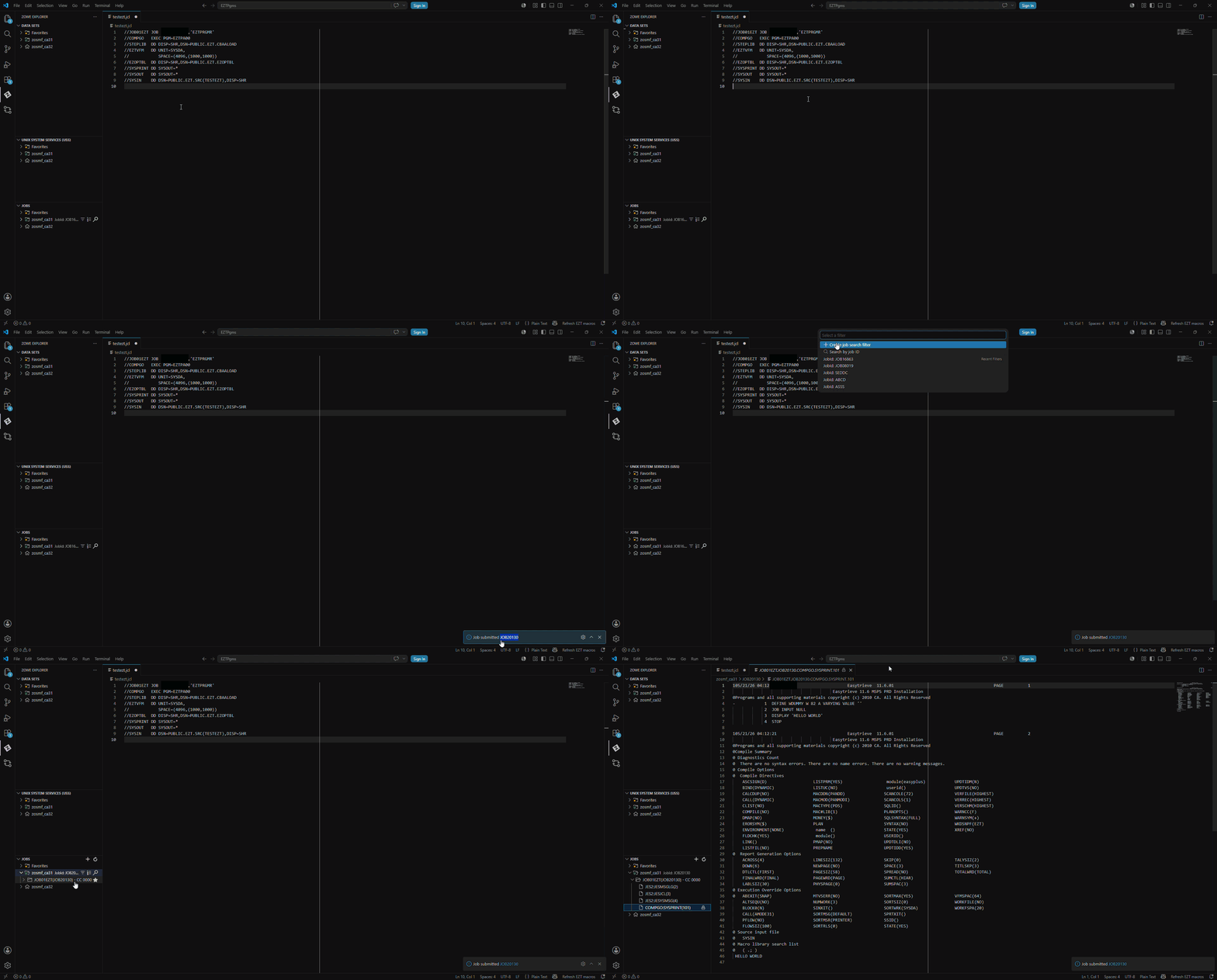
To upload your EZT and JCL files to the mainframe, right-click on the Easytrieve program file and select Upload EZT to Mainframe. The EZT file is uploaded to the data set provided in the
eztdsnsetting, and the JCL file is uploaded to the data set provided in thejcldsnsetting. -
To submit the job:
-
Right-click the JCL member name in the Zowe Explorer tree and select Submit Job, or:
-
Right-click the JCL file and select Submit Job in the Easytrieve Language Support extension.
A notification appears at the bottom right with the Job ID. Click the Job ID to jump directly to the spool.
- Verify the output to ensure your Easytrieve code executed successfully:
-
Go to the Jobs section in the Zowe Explorer side panel.
-
Search for your Job ID or filter by your username.
-
Expand the job entry to see the different output DDs.
-
Open the job output in a new VS Code tab.
The job displays a "0000" completion code and your report opens in a new VS Code tab.
You generated, validated, and executed your Easytrieve program on the mainframe.
Technical Assistance and Support
The Easytrieve extension is made available to customers on the Visual Studio Code Marketplace in accordance with the terms and conditions contained in the provided End-User License Agreement (EULA).
If you are on active support for Easytrieve Report Generator, you get technical assistance and support in accordance with the terms, guidelines, details, and parameters that are located within the Broadcom Working with Support guide.
This support generally includes:
- Telephone and online access to technical support
- Ability to submit new incidents 24x7x365
- 24x7x365 continuous support for Severity 1 incidents
- 24x7x365 access to Broadcom Support Online
- Interactive remote diagnostic support
- Technical support cases must be submitted to Broadcom support in accordance with guidance provided in “Working with Support”.
Note: To receive technical assistance and support, you must remain compliant with “Working with Support”, be current on all applicable licensing and maintenance requirements, and maintain an environment in which all computer hardware, operating systems, and third party software associated with the affected Broadcom software are on the releases and version levels from the manufacturer that Broadcom designates as compatible with the software. Changes you elect to make to your operating environment could detrimentally affect the performance of Broadcom software and Broadcom shall not be responsible for these effects or any resulting degradation in performance of the Broadcom software. Severity 1 cases must be opened via telephone and elevations of lower severity incidents to Severity 1 status must be requested via telephone.
Privacy Notice
The extensions for Visual Studio Code developed by CA, Inc. ("Broadcom") are provided free of charge, but in order to better understand and meet its users’ needs, Broadcom may collect, use, analyze and retain anonymous users’ metadata and interaction data, (collectively, “Usage Data”) and aggregate such Usage Data with similar Usage Data of other Broadcom customers. Please find more detailed information in License and Service Terms & Repository.
This data collection uses built-in Microsoft VS Code Telemetry, which can be disabled, at your sole discretion, if you do not want to send Usage Data.
The current release of Easytrieve Language Support collects anonymous data for each activation of this VS Code extension event.
This event is logged with the following information:
- Event time
- Operating system and version
- Country or region
- Anonymous user and session ID
- Version numbers of Microsoft VS Code and Easytrieve Language Support